Step-by-Step Registration Process for HHC Dropshipping Account
Step 1: Open your browser and visit
https://hhcdropshipping.com/Member/register
Step 2: Enter your full name, email, password, and WhatsApp number.
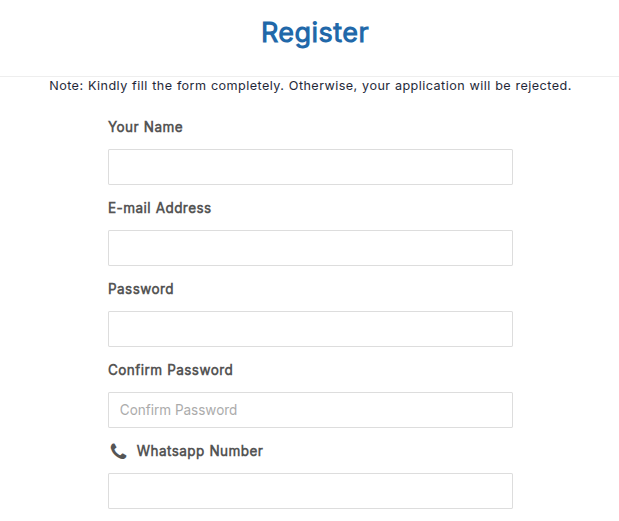
Step 3: You will now see three mandatory questions.
Do not copy–paste AI-generated answers. Write your own responses carefully.
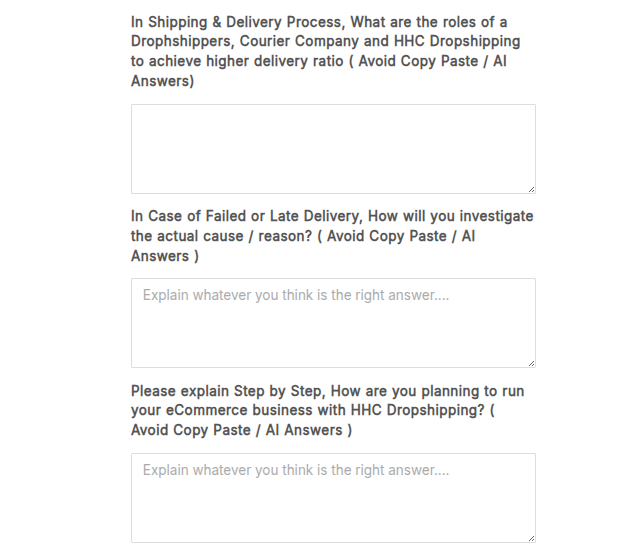
These answers help our team understand your seriousness and e-commerce knowledge level.
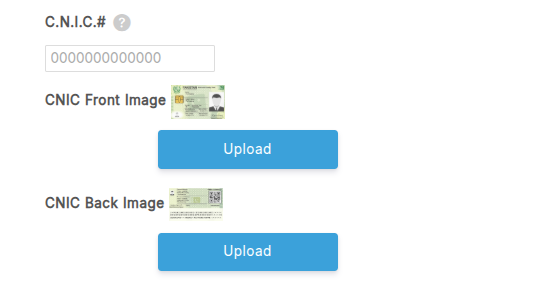
Step 4: Upload both sides of your CNIC.
Note: Maximum file size should be 5 MB. Compress images using any online tool if required.
Step 5: Enter your payment details. You can use a Bank Account, EasyPaisa, JazzCash, or any other supported e-wallet.
Please provide the following:
- Bank/E-wallet Name
- Account Holder’s Name
- IBAN or Account Number
- Upload a clear picture of your cheque or IBAN screenshot from your mobile banking app, or a screenshot showing your IBAN/account number from your e-wallet application (e.g., EasyPaisa, JazzCash, etc.).
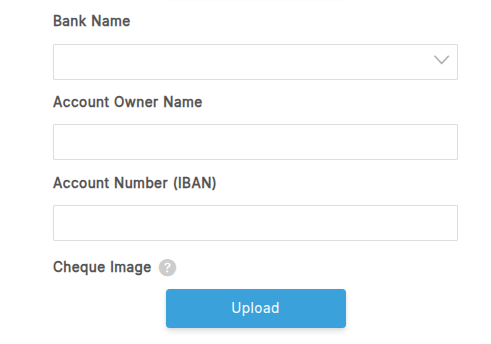
Make sure all information is accurate and the uploaded images/screenshots are clear and readable, as this is required for verification and future payouts.
Note: Carefully read all the rules and policies listed below the form and tick “Agree.”
Your account will get approved within 24 to 48 working hours.
What If You Didn’t Receive the Verification Email?
If you have successfully submitted your registration but did not receive the verification email, please follow these steps before contacting support:
Step 1: Check your Spam, Junk folders in your email account; sometimes the verification email lands there instead of your main inbox.
Step 2: Go back to the HHC Dropshipping portal and try to log in using the same email you used during registration. Once you log in, you will see an option to resend the verification email. Click on that and wait a few minutes for the email to arrive in your inbox.
If you still do not receive it after following the above steps, you can contact our official social media team with your email for further assistance.
Why Registration Gets Rejected
If your registration is rejected by HHC and you receive an email notification, please follow the steps below to identify and correct the issue:
- Log back into the HHC portal using the same email and password that you used during your initial registration.
- Once logged in, the registration form will reappear.
- On this form, the fields requiring correction will be highlighted in red, and a detailed reason for rejection will be clearly mentioned at the bottom by our review agent.
This allows you to clearly identify what needs to be corrected before resubmitting your application.
Common reasons for rejection include:
- Incorrect or invalid email address or WhatsApp number
- Copy-pasted or irrelevant answers to the business-related questions
- Incorrect CNIC details or missing/blurred images
- Incomplete or mismatched IBAN
- Missing or unclear cheque image/e-wallet IBAN screenshot
By carefully reviewing and correcting these fields, you can successfully resubmit your application for approval.
Why Registration Gets Rejected Due to Duplicate Details
To ensure transparency and security, HHC strictly allows only one account per individual.
If our system detects that the same personal details (such as name, CNIC, contact number, or bank information) are being used again with a different email, it automatically flags the application as a duplicate entry, which results in rejection.
If your application is rejected due to duplication, simply change the personal details that match your previous account (like CNIC, number, or bank details) and then resubmit.
After logging back in, always check the Agent Review section; it tells you why your application was marked as duplicate, so you know exactly what to fix before resubmitting.
Creating a New Account with the Same Details – What You Need to Know
If your previous email is no longer accessible or there is some other issue due to which you cannot continue using your old HHC account, and you want to create a new account using the same personal details, then first register using a new email address, and send us a message on our official social media support explaining the reason.
Once verified, our team will close your old account and allow you to operate your new account using the same personal details.
Note: The new account must be created with a different email. It cannot be registered on the same email as before.
Important Notice Regarding Login Attempts
For security reasons, if multiple unsuccessful login attempts are made using incorrect credentials, your HHC account will be temporarily locked.
In such cases, please wait for 4-5 hours as indicated on the login screen. Once the waiting period has passed, you may attempt to log in again using the correct credentials.
We appreciate your understanding and cooperation in keeping your account secure.